Cancellation
- Connector Type:
default - Key Type:
manual
In American English, verb forms of "cancel" are spelled with one "l" (canceled, canceling), while the noun form uses two "l"s (cancellation). This documentation follows American English spelling conventions.
Cancellation in Studio
-
Log in as Rick C.
-
Open the GlobalLink settings
/Settings/Options/Settings/Translation Services/GlobalLinktypeis set todefault- Credentials for gcc are entered (manual workflow key)
-
Start a translation for an article.
-
Select the started translation in the control-room.
-
Click the “X” in the header bar and confirm the dialog.
-
Open the "Closed" area in the Workflow App.
-
Wait for the translation process to appear in "Closed".
-
Check:
- The “Status” field should display “Canceled”
- The icon should mark the workflow as canceled (little “x” on the bottom right)
Cancellation in GlobalLink
-
Log in as Rick C.
-
Open the GlobalLink settings
/Settings/Options/Settings/Translation Services/GlobalLinktypeis set todefault- Credentials for gcc are entered (manual workflow key)
-
Start a translation for an article.
It is recommended to set a distinguishable name for the workflow, to better locate in the next step.
-
Log in to the GlobalLink Management Dashboard and cancel the workflow.
The "Cancel" button used to be in the upper right corner of the opened submission.
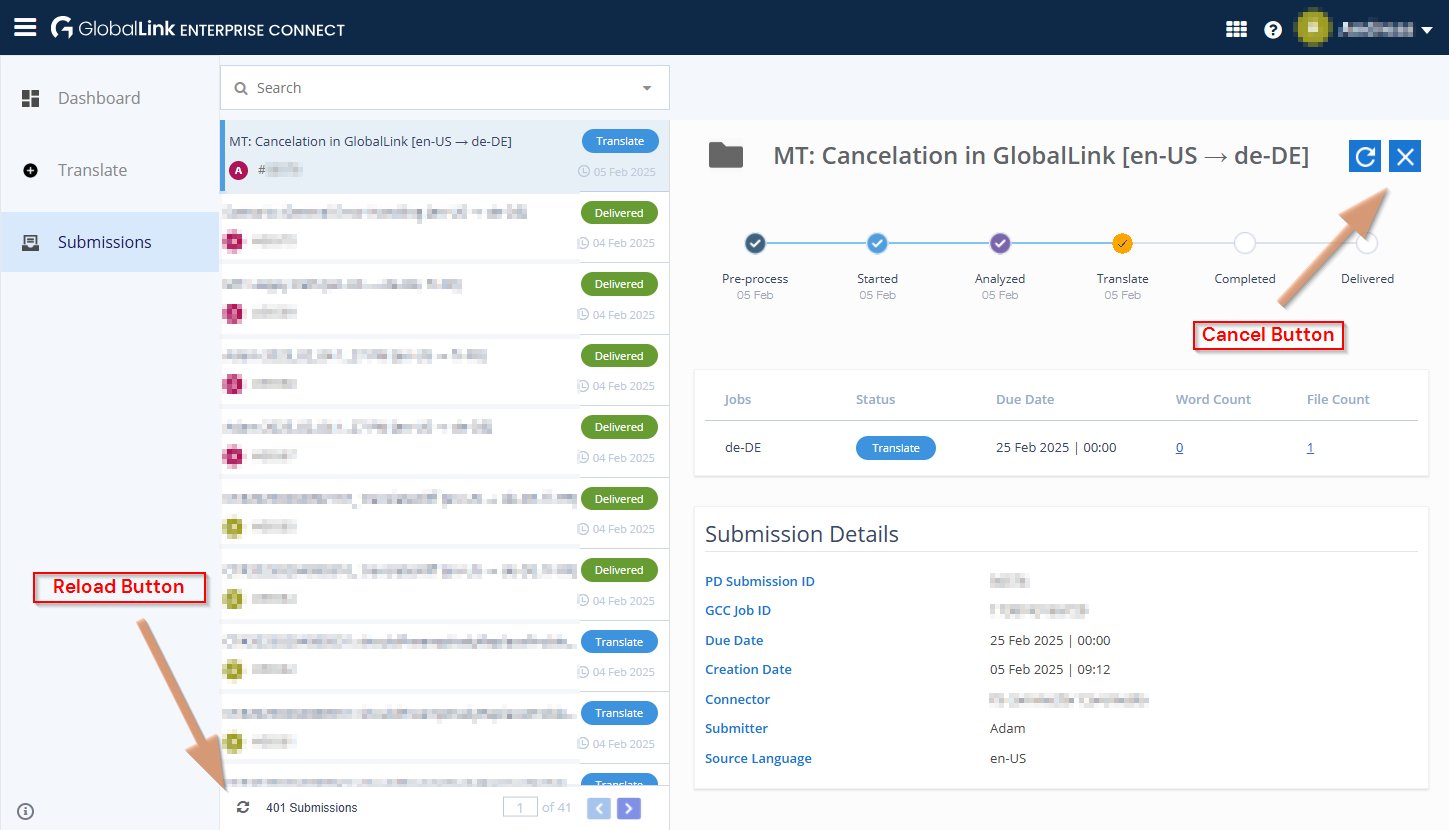
-
Go back to the Workflow App
- After a while, the workflow should appear in Rick's "Open" workflows
- When accepting the task, Rick can only choose to abort and rollback the previous changes and accept the cancellation.
- Choose "Abort and rollback changes".
-
Open the "Closed" area and open the canceled workflow.
- Field “Status” should display “Canceled”
- The icon should mark the workflow as canceled (little “x” on the bottom right)
Cancellation Error Handling
The following test is about the error handling of a cancellation, as well as it includes testing UI behaviors for multi-selection.
-
Log in as Rick C.
Required to use Rick C here, as Adam, for example, will not be able to do the multi-selection test, as local translations will appear in "Open" section for Adam.
-
Open the GlobalLink settings
/Settings/Options/Settings/Translation Services/GlobalLinktypeis set todefault- Credentials for gcc are entered (manual workflow key)
-
Start three translation workflows for the same article:
- Start a GlobalLink Translation Workflow two times.
- Start a default Blueprint translation workflow.
-
Control Room: Check the multi-selection behavior of the "X" in the header bar:
- If all selected translations are of type "GlobalLink", the "X" should be visible and activated.
- If one of the selected translations is not of type "GlobalLink", the "X" should be hidden.
-
Workflow App: Check the "X Cancel" option in the "Running" section of the Workflow App:
- If all selected translations are of type "GlobalLink", the "X" should be visible and activated.
- If one of the selected translations is not of type "GlobalLink", the "X" should be hidden.
-
Break it:
Consider to temporarily change the
globalLink.retryCommunicationErrorsto2to give you more time (120 seconds) to proceed with the next steps.Prepare to change, for example
globalLink.apiKeyto some invalid value like adding a-(minus) as first character. This will cause subsequent calls to GlobalLink to fail.Before that, either have your control-room open, or the workflow app in an extra window. For a single-screen setup, it is recommended to use the control-room.
Do it: Now, break the connection to GlobalLink by changing the
apiKey. -
Speed Mode, Step 1: Select both "Translation with GlobalLink" workflows and click the “X”. Acknowledge the dialog to proceed the cancellation.
-
Speed Mode, Step 2: Check that already now, the "X" button/menu-entry is disabled.
You may calm down now, as the following steps are not time-critical.
-
Workflow App: Open one of the workflows.
-
Wait for the workflow to reach the task named "Cancellation error".
-
Validate the following:
- The "Current Task" field should display "Cancellation Error".
- The "Status" field should display "Canceled".
- The icon should signal a warning.
-
Click "Accept Task" and "Next Step"
-
Validate options, that should be available:
- Abort and rollback without canceling at GlobalLink
- Retry cancellation
- Continue translation
-
Click "Abort and rollback without canceling at GlobalLink" and open the target site's document
- The document should remain in its previous version.
-
Go back to the Workflow App overview
- The workflow should be moved from the "Running" to the "Closed" list
- The “Status” field in Workflow App's overview should display “Workflow completed”
- The icon should mark the workflow as canceled (little “x” on the bottom right)
-