Cancelation
- Connector Type:
default - Key Type:
manual
GlobalLink uses "Cancellation", but according to Miriam Webster, which is our go-to source for spelling, "Cancelation" is better to be used in American English – while both are valid.
Source: Merriam-Webster: Cancelled or Canceled - Which is Correct?
Cancelation in Studio
-
Log in as Rick C.
-
Open the GlobalLink settings
/Settings/Options/Settings/Translation Services/GlobalLinktypeis set todefault- Credentials for gcc are entered (manual workflow key)
-
Start a translation for an article.
-
Select the started translation in the control-room.
-
Click the “X” in the header bar and confirm the dialog.
-
Open the "Closed" area in the Workflow App.
-
Wait for the translation process to appear in "Closed".
-
Check:
- The “Status” field should display “Canceled”
- The icon should mark the workflow as canceled (little “x” on the bottom right)
Cancelation in GlobalLink
-
Log in as Rick C.
-
Open the GlobalLink settings
/Settings/Options/Settings/Translation Services/GlobalLinktypeis set todefault- Credentials for gcc are entered (manual workflow key)
-
Start a translation for an article.
It is recommended to set a distinguishable name for the workflow, to better locate in the next step.
-
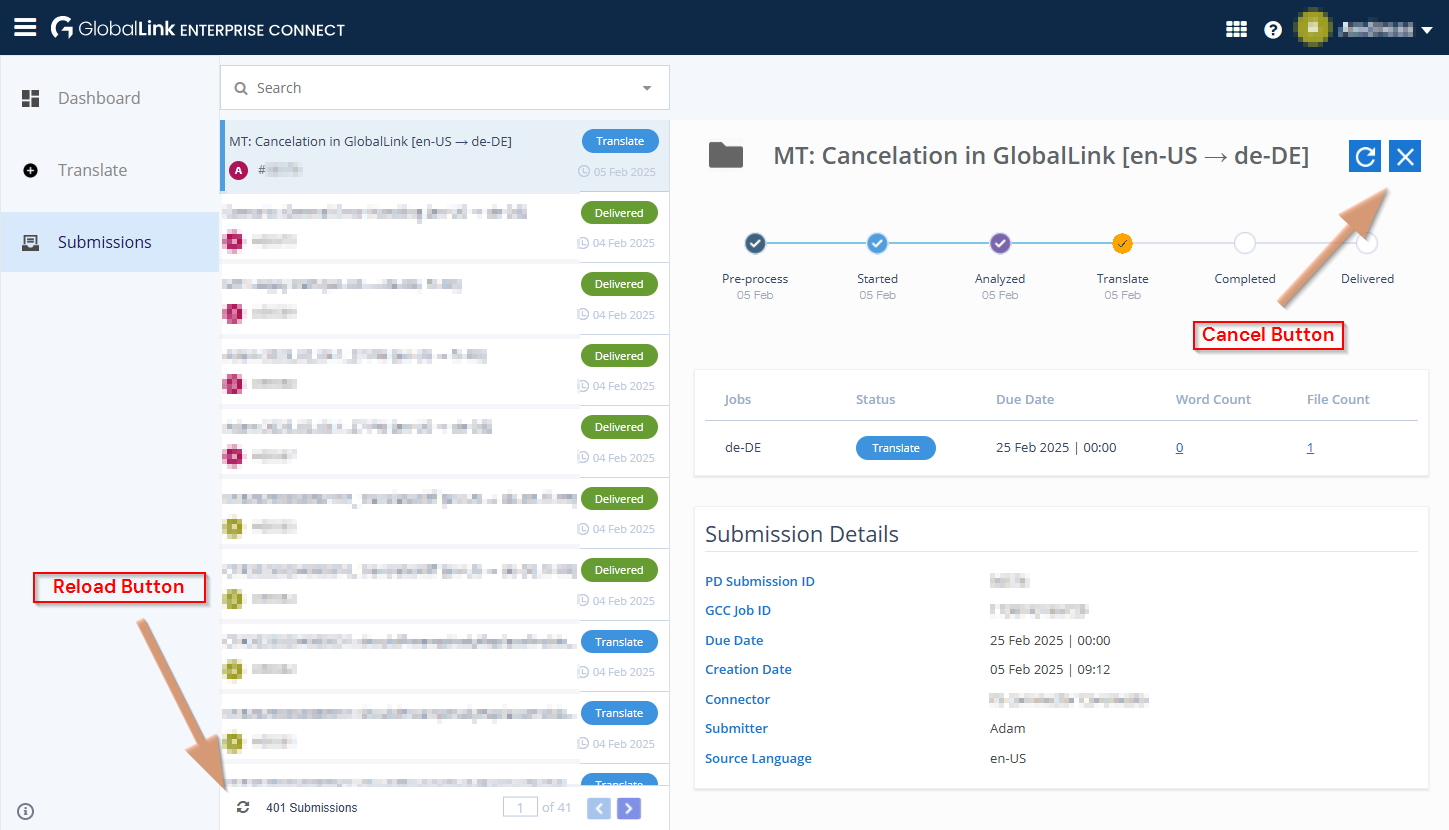
Log in to the GlobalLink Management Dashboard and cancel the workflow.
The "Cancel" button used to be in the upper right corner of the opened submission.
-
Go back to the Workflow App
- After a while, the workflow should appear in Rick's "Open" workflows
- When accepting the task, Rick can only choose to abort and rollback the previous changes and accept the cancelation.
- Choose "Abort and rollback changes".
-
Open the "Closed" area and open the canceled workflow.
- Field “Status” should display “Canceled”
- The icon should mark the workflow as canceled (little “x” on the bottom right)
Cancelation Error Handling
The following test is about the error handling of a cancelation, as well as it includes testing UI behaviors for multi-selection.
-
Log in as Rick C.
Required to use Rick C here, as Adam, for example, will not be able to do the multi-selection test, as local translations will appear in "Open" section for Adam.
-
Open the GlobalLink settings
/Settings/Options/Settings/Translation Services/GlobalLinktypeis set todefault- Credentials for gcc are entered (manual workflow key)
-
Start three translation workflows for the same article:
- Start a GlobalLink Translation Workflow two times.
- Start a default Blueprint translation workflow.
-
Control Room: Check the multi-selection behavior of the "X" in the header bar:
- If all selected translations are of type "GlobalLink", the "X" should be visible and activated.
- If one of the selected translations is not of type "GlobalLink", the "X" should be hidden.
-
Workflow App: Check the "X Cancel" option in the "Running" section of the Workflow App:
- If all selected translations are of type "GlobalLink", the "X" should be visible and activated.
- If one of the selected translations is not of type "GlobalLink", the "X" should be hidden.
-
Break it:
Consider to temporarily change the
globalLink.retryCommunicationErrorsto2to give you more time (120 seconds) to proceed with the next steps.Prepare to change, for example
globalLink.apiKeyto some invalid value like adding a-(minus) as first character. This will cause subsequent calls to GlobalLink to fail.Before that, either have your control-room open, or the workflow app in an extra window. For a single-screen setup, it is recommended to use the control-room.
Do it: Now, break the connection to GlobalLink by changing the
apiKey. -
Speed Mode, Step 1: Select both "Translation with GlobalLink" workflows and click the “X”. Acknowledge the dialog to proceed the cancelation.
-
Speed Mode, Step 2: Check that already now, the "X" button/menu-entry is disabled.
You may calm down now, as the following steps are not time-critical.
-
Workflow App: Open one of the workflows.
-
Wait for the workflow to reach the task named "Cancelation error".
-
Validate the following:
- The "Current Task" field should display "Cancelation Error".
- The "Status" field should display "Canceled".
- The icon should signal a warning.
-
Click "Accept Task" and "Next Step"
-
Validate options, that should be available:
- Abort and rollback without canceling at GlobalLink
- Retry cancelation
- Continue translation
-
Click "Abort and rollback without canceling at GlobalLink" and open the target site's document
- The document should remain in its previous version.
-
Go back to the Workflow App overview
- The workflow should be moved from the "Running" to the "Closed" list
- The “Status” field in Workflow App's overview should display “Workflow completed”
- The icon should mark the workflow as canceled (little “x” on the bottom right)
-