Send Content to GlobalLink
Once finished working on the campaigns content, open the Control Room and click the Start a localization workflow button in the toolbar of the Localization workflows.

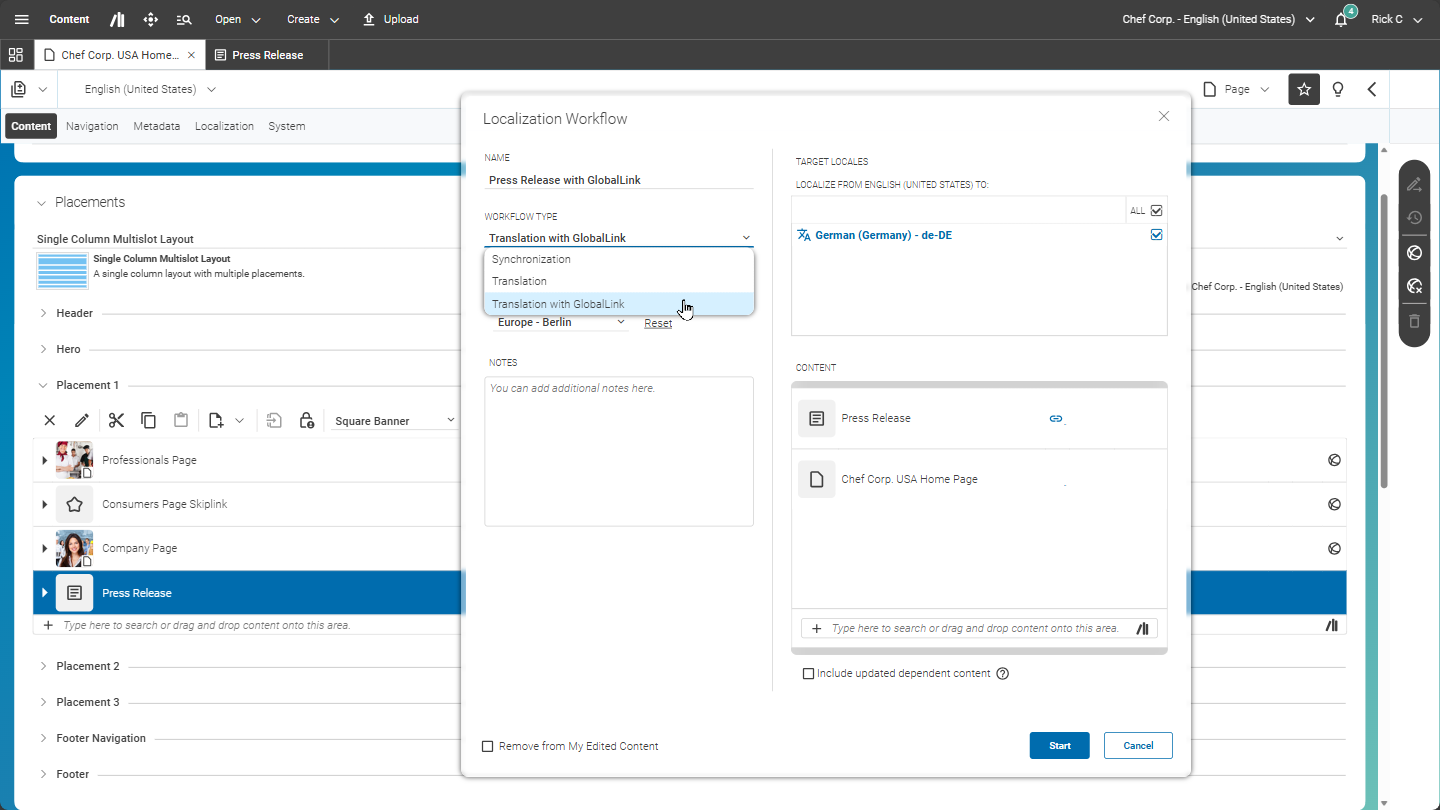
In the Start Localization Workflow window, select the workflow type Translation with GlobalLink, set a self-describing name, a due date, drop the to-be-translated content, and set the target locales. The notes are sent as instructions for the translators.
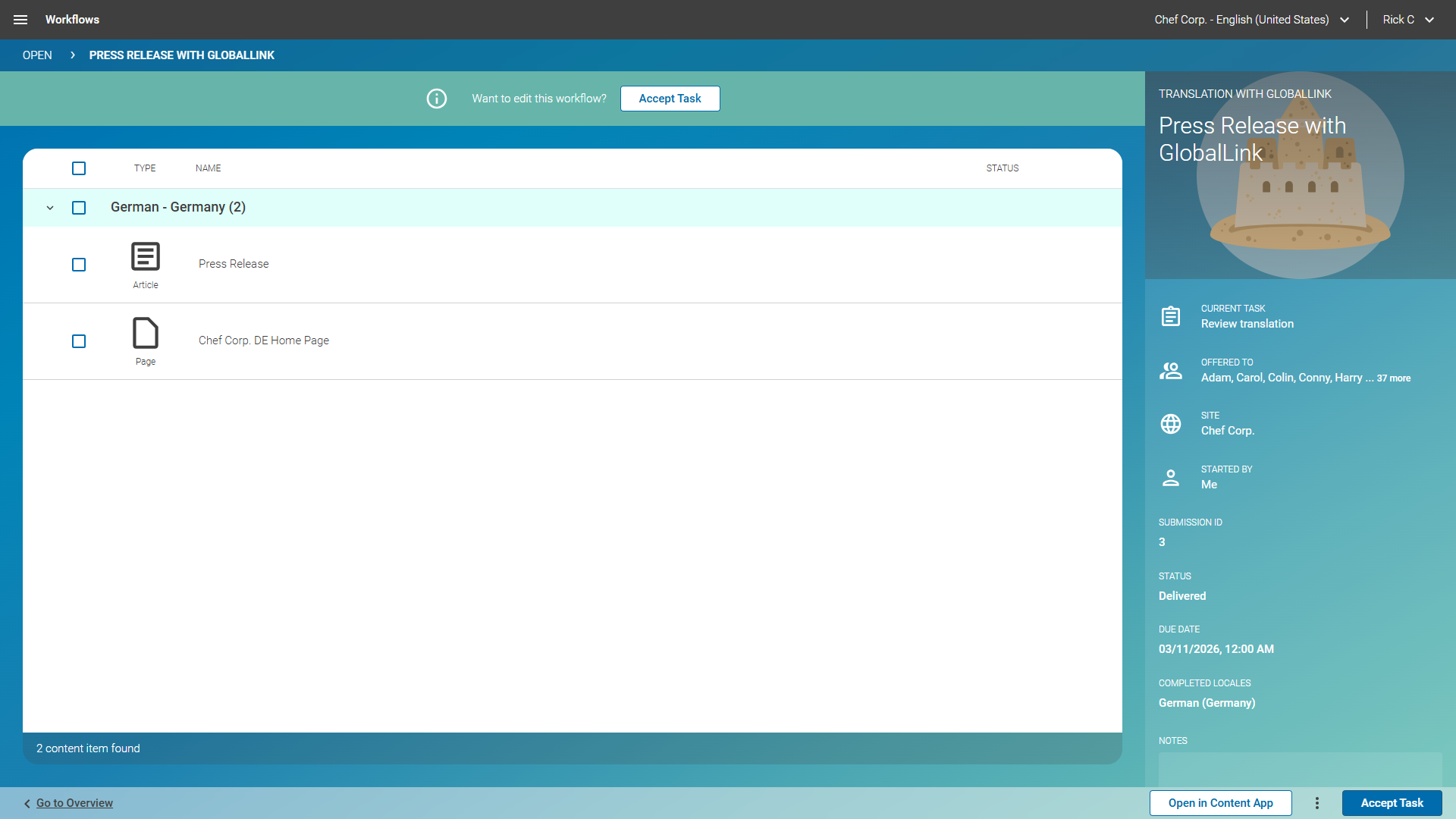
After having started the workflow, it is shown in the pending workflow section. Double-click the workflow to open it in the detail view in the Workflow app. Here you will see the submission state, the id and other information once available.
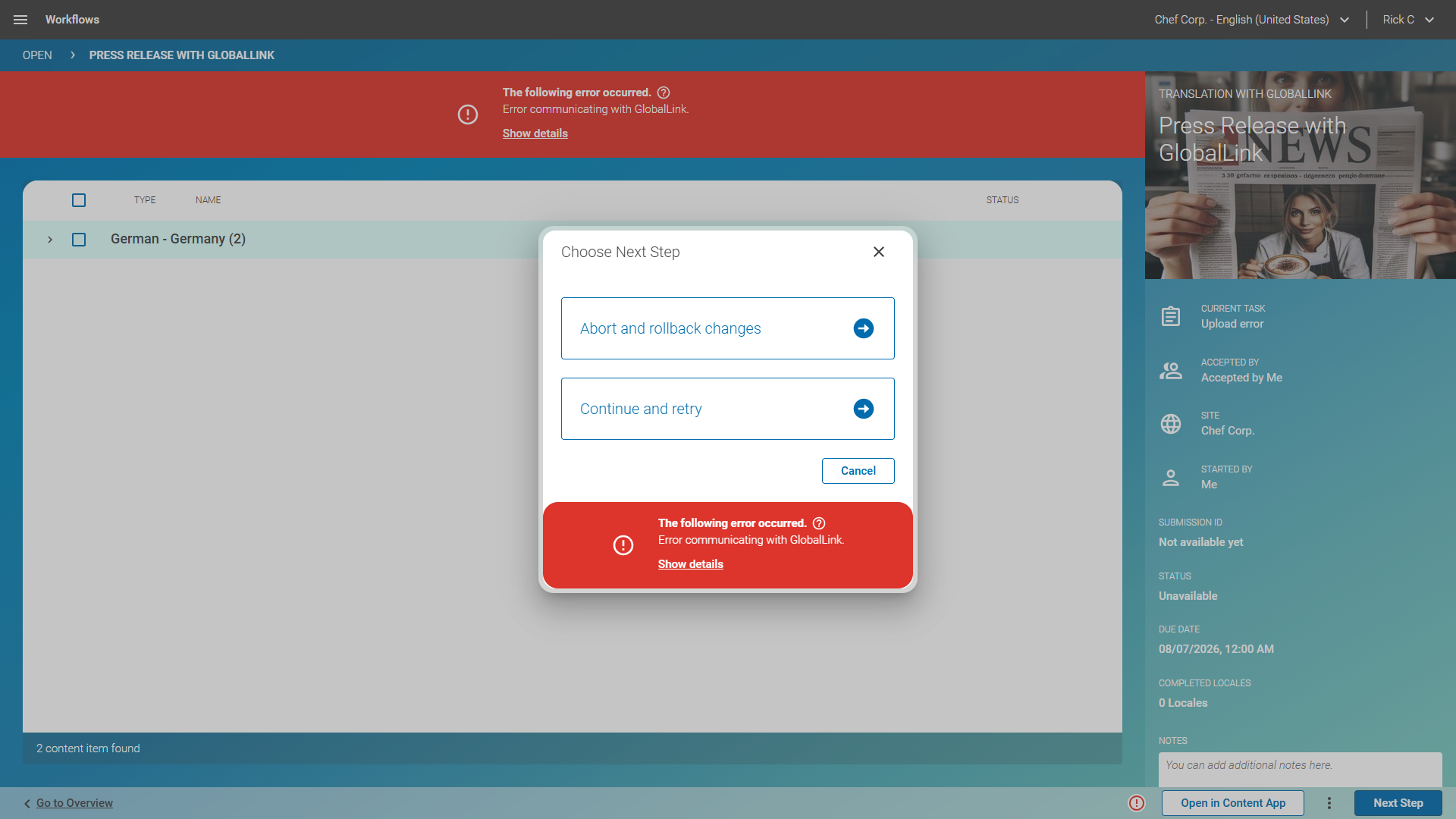
In case an error occurs, the workflow re-appears in your inbox, and you can select to cancel the workflow, or you can try to fix the problem and retry.
If there was an issue with the XLIFF retrieved from the GCC backend (such as being corrupted or invalid), you will have the option to download the XLIFF as well as details about the issues (in a ZIP file).
If the download error cannot be fixed, but you have, for example, retrieved the XLIFF by other means, you may choose to finish the translation despite the observed error. Ensure that your target contents received their required updates and inform GlobalLink that the submission may be closed.
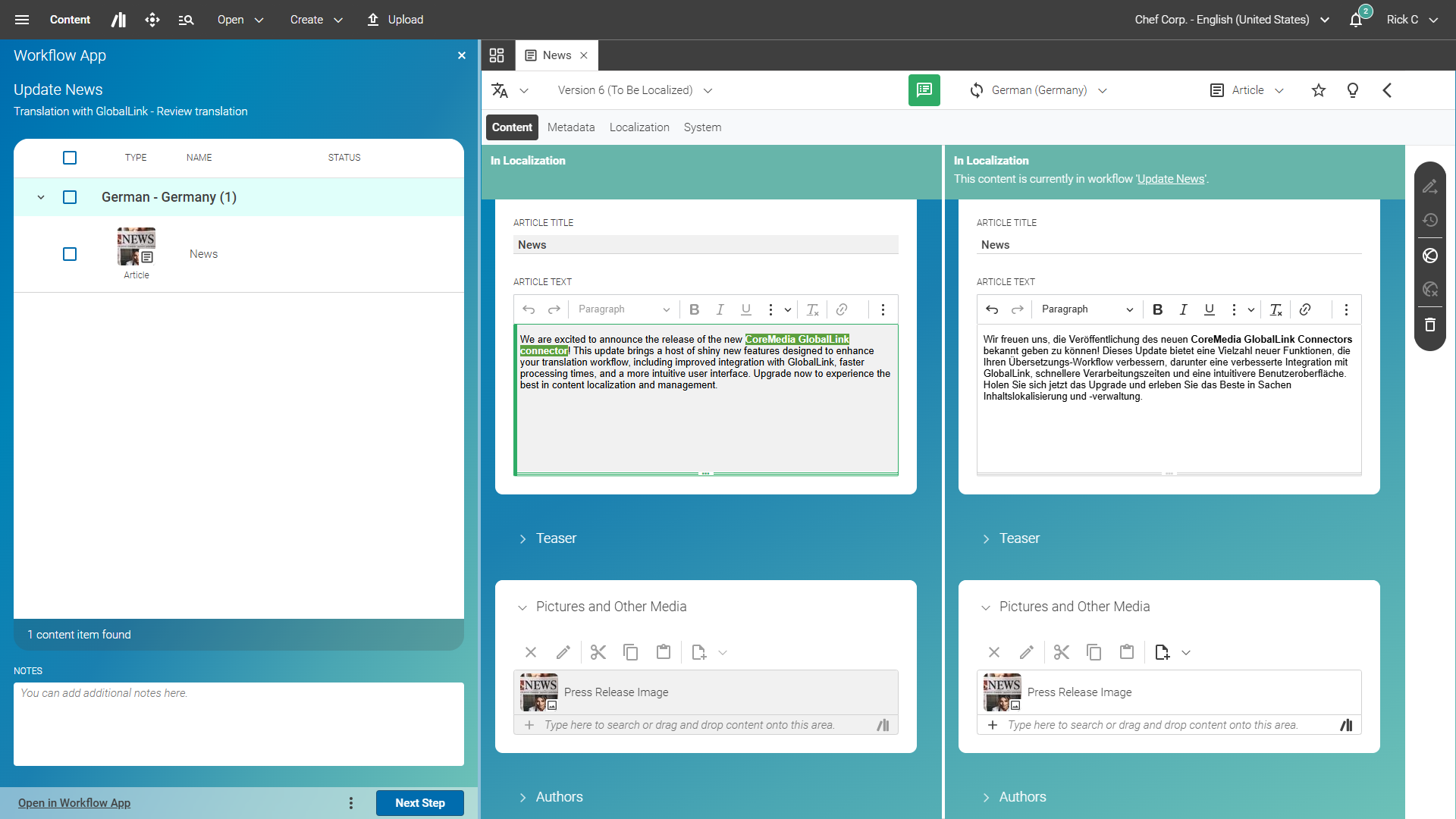
After the translation is finished, you will receive a notification. The workflow is shown in the inbox and once accepting the task, you can review the content in the content app and finish it.
Well done.